Azure DevOps publishes services which can be used to connect and fetch data from our custom applications. These services are exposed in the form of REST APIs.
There are a lot of REST APIs exposed by Microsoft which can connect to Azure DevOps for various actions. Some APIs help in process customization, some in getting data from Work Items, some will make build and release definitions data available. In this article, I will be discussing a way to fetch the data from work items, write it to a third-party storage and also create a worktime programmatically.
Get hands-on experience on Azure DevOps from live experts at DevOps Online Training India
The question is why are these REST APIs required?
There can be different reasons.
- Sometimes the work items data cannot be obtained in the desired form and quantity by executing custom queries. In such cases, we can programmatically fetch work items data and then shape it in the desired form.
- Many organizations have third-party applications that use data from work items. For example a TimeSheet application which fetches the efforts related data from Tasks in Azure DevOps. In such a situation, we need a way with which this data can be fetched and stored in the application for further processing.
- Sometimes we may have to create worktime for example, an Incident being created in a third-part application like Service Now. There is no direct Ticket as a work item available in Azure DevOps, so we can create it programmatically.
For this article, I am going to get original estimates and completed hours for tasks worktime, for which the state is closed, and then store it in the SQL Azure database. This can later be used by a TimeSheet application to measure the efforts by developers. I will also discuss how to create a work item of type Task programmatically.
Being HTTP GET or PUT operations, REST APIs can be consumed from a browser to fetch data in the JSON format. We can then convert this data to any format we want and process it.
Following are a few examples for fetching details from Azure DevOps.
https://dev.azure.com/{Organization name}/{project name}/_apis/wit/work items/{worktime id}?api-version=5.0 will provide all the data about the specified work item.
We can get it in an extended format with https://dev.azure.com/demovststrg/_apis/wit/workitems?ids={list of ids}&$expand=all&api-version=5.0
We can get all the teams available for the Team Project by using
https://dev.azure.com/{organization name}/_apis/teams?api-version=5.0-preview.2
Connect to Azure DevOps
In order to authenticate on Azure DevOps, there are 3 ways available.
One is to create PAT (Personal Access Token), second is by providing basic authentication and third is by using OAuth.
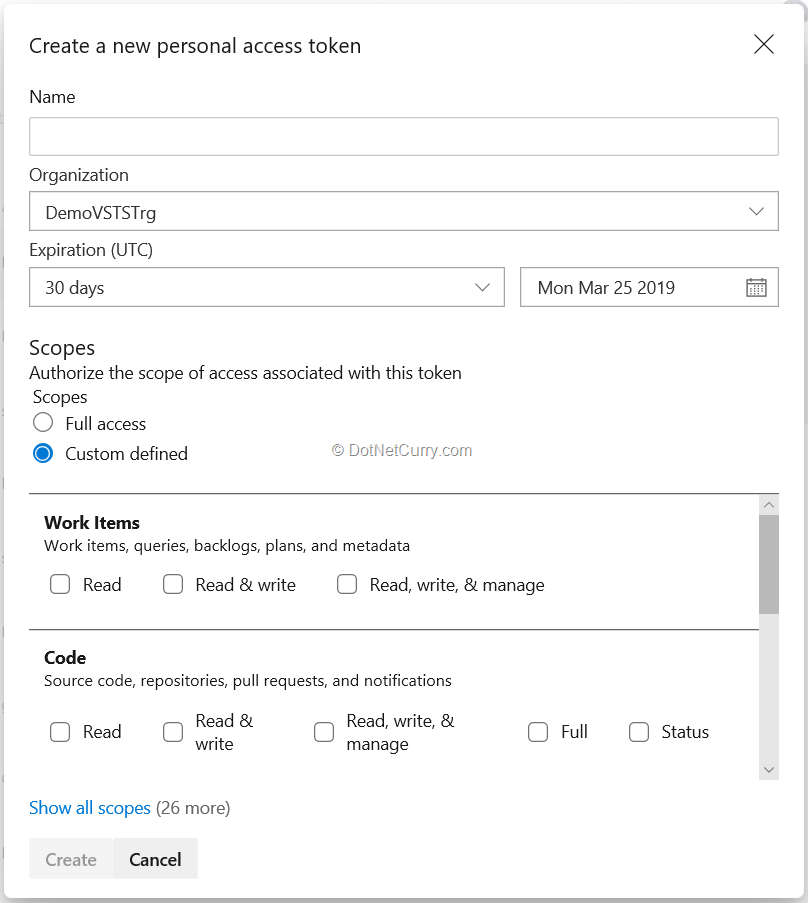
I will use PAT here. We can create this token by using the security tab for the account and selecting New Token option. Provide the name, specify scope and select the duration for the token. Keep it at a safe place to use as and when required.
NuGet Packages
In order to connect to Azure DevOps and work with the REST APIs, we have to refer to multiple NuGet Package. Let us create an application and select Manage NuGet Packages option from Solution Explorer.
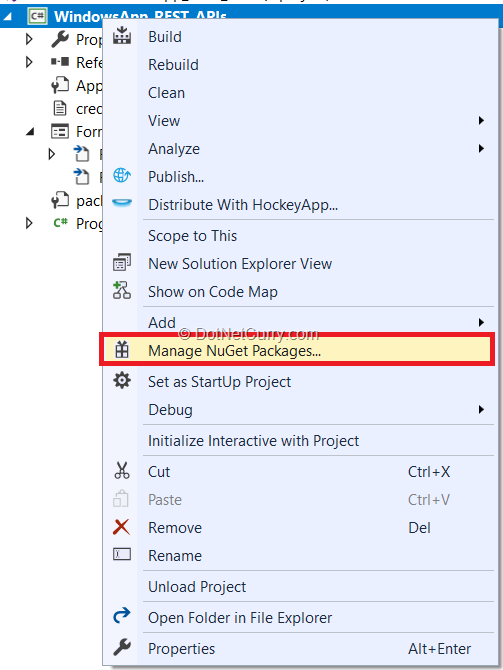
Search for Microsoft.TeamFoundationServer.Client in the browse tab and install it (all the required dependencies also gets installed).
For this example, I have created a credentials file in which I am writing the account information, PAT and the connection string for SQL server where I will write the data.
Create Connection and Client for worktime Tracking
VssConnection connection = null;connection = new VssConnection(new Uri("https://" + account + ".visualstudio.com"), new VssBasicCredential(string.Empty, PAT));WorkItemTrackingHttpClient witClient = connection.GetClient<WorkItemTrackingHttpClient>(); |
This code connects to Azure DevOps using VssConnection (Microsoft.VisualStudio.Services.WebApi namespace) and uses GetClient method for WorkItemTrackingHttpClient (Microsoft.TeamFoundationServer.WorkItemTracking.Webapi namespace)
Fetch Data from Azure DevOps
Now that we have established a connection with required credentials to Azure DevOps, we can fetch the data.
As we are interested to get the entries related to the efforts put in by developers while working on tasks, we need worktime specific data. For that we need to declare WorkItemTrackingHttpClient as already mentioned. We will now create a worktime query in wiql (worktime query language). It is similar to SQL query which specifies work item fields to be selected, any conditions to be given and the data can be fetched as a wiql object. In this example, the query just fetches worktime ids for the current team project and worktime types in category of Requirements
Create wiql Query
Wiql wiql = new Wiql();wiql.Query = "SELECT [System.Id] FROM Work Items WHERE [System.TeamProject] = '" + <Team Project name> + "' AND [System.WorkItemType] IN GROUP 'Requirement Category' " ; |
I have to create a query which fetches details like original estimate, completed hours, who the task is assigned to, and where the state is closed. As I am fetching the data for original estimate, I have used the Team Project based on Agile process.
This query is as follows:
wiql.Query = "SELECT [System.Id], [System.Title], [System.AssignedTo], [System.State], [Microsoft.VSTS.Scheduling.OriginalEstimate], [Microsoft.VSTS.Scheduling.RemainingWork] FROM Work Items WHERE [System.WorkItemType] = 'Task' AND [System.State] = 'Closed' AND [System.TeamProject]='" + <Team Project name> + "'"; |
There is a method called OpenQueryByWiqAsync which will fetch the data. The data sent is in json format, you can then convert it the way you want and display or process it. In this case, I have obtained the data for original estimate, completed hours, title for the task and who it is assigned to. I am also storing the data in a SQL Azure database.
The code for fetching and processing data looks as below:
wiql.Query = <wiql query>;WorkItemQueryResult tasks = witClient.QueryByWiqlAsync(wiql).Result; if (tasks.WorkItems.Any()){IEnumerable<WorkItemReference> tasksRefs;tasksRefs = tasks.WorkItems;List<WorkItem> tasksList = witClient.GetWorkItemsAsync(tasksRefs.Select(wir => wir.Id)).Result;AllClosedTasks = tasksList.Count; foreach (WorkItem task in tasksList){int _id = task.Id ?? default(int);IEnumerable<string> fields = new List<string>() { <field list> };WorkItem workItem = witClient.GetWorkItemAsync(_id, fields, null, null).Result;if (workItem.Fields.Count > 0){foreach (string fld in workItem.Fields.Keys.ToList<string>()){if (fld == "Microsoft.VSTS.Scheduling.OriginalEstimate"){OriginalEst = (double)workItem.Fields[fld];}<remaining if statements to get data>}}} |
I have declared variables like OriginalEst for getting data.
Store the data to SQL Azure Database
Create a database in SQL Azure and add a table in it named TimeSheetData with following structure:
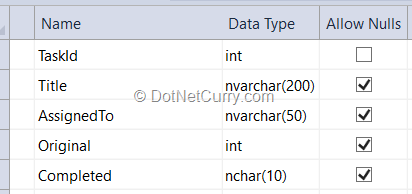
Now we need to store the data so it can be then processed further by a TimeSheet application. The code to store in database is very straightforward as follows”
SqlConnection con = new SqlConnection();SqlCommand cmd = new SqlCommand();con.ConnectionString = <connection string>;cmd.Connection = con;cmd.CommandText = "INSERT INTO TimeSheetData VALUES (@TaskID,@Title,@AssignedTo,@Original,@Completed)";cmd.Parameters.Add("@TaskID", SqlDbType.Int).Value = task.Id;cmd.Parameters.Add("@Title", SqlDbType.NVarChar).Value = title;cmd.Parameters.Add("@AssignedTo", SqlDbType.NVarChar).Value = assignedTo;cmd.Parameters.AddWithValue("@Original", SqlDbType.SmallInt).Value = OriginalEst;cmd.Parameters.AddWithValue("@Completed", SqlDbType.SmallInt).Value = CompletedHrs;con.Open();cmd.ExecuteNonQuery();con.Close(); |
With this remaining code snippet I have completed processing of the data fetched from work items from Azure DevOps and stored it in SQL Azure.
Create Work Items programmatically
Let us see how to write the code for creating the work items programmatically.
Sometimes it may be required to create work items on the fly. One case can be creating spawning of requirements into task every time we create a requirement worktime. You can capture the event of creating worktime in Azure DevOps by using service hook which in turn triggers an azure function which creates the required work items. I have written a series of this long time back. In this case, I will create a small console application which will show how to create work items.
Provide Title for worktime
In this case too, we need to create connection to AzureDevOps. We also need to set a reference to JSonsoft.
var document = new Microsoft.VisualStudio.Services.WebApi.Patch.Json.JsonPatchDocument();document.Add(new Microsoft.VisualStudio.Services.WebApi.Patch.Json.JsonPatchOperation(){Path = "/fields/System.Title”,Operation = Microsoft.VisualStudio.Services.WebApi.Patch.Operation.Add,Value = <value>}); |
Finally, we can call the method CreateWorkitemAsync
var worktime = workitemClient.CreateWorkItemAsync(document, <Team Project name>, <type of work item>).Result; |
Similar to this example, we can provide all the required fields (AreaPath, AssignedTo, Description etc) for the work item before we can actually save it. Microsoft has provided a lot of methods with which we can create related work items by providing links (links can be parent child or predecessor successor or just plain related link) or create attachments for the worktime.
These REST APIs can also be used in case we need to migrate work items from on premises TFS to Azure DevOps. In such a situation, we need to first read the work items from TFS and then replicate it in Azure DevOps. There is a utility to do this but sometimes TFS may contains some customization which cannot be migrated with the tool. So, we need to do this programmatically. We can even migrate the whole history for the work items.
Conclusion
In this tutorial, we have seen how to use REST APIs to connect to Azure DevOps, fetch data for work items and finally how to create work items.
Know more information from live experts at DevOps Online Course Hyderabad
 Linux updates